
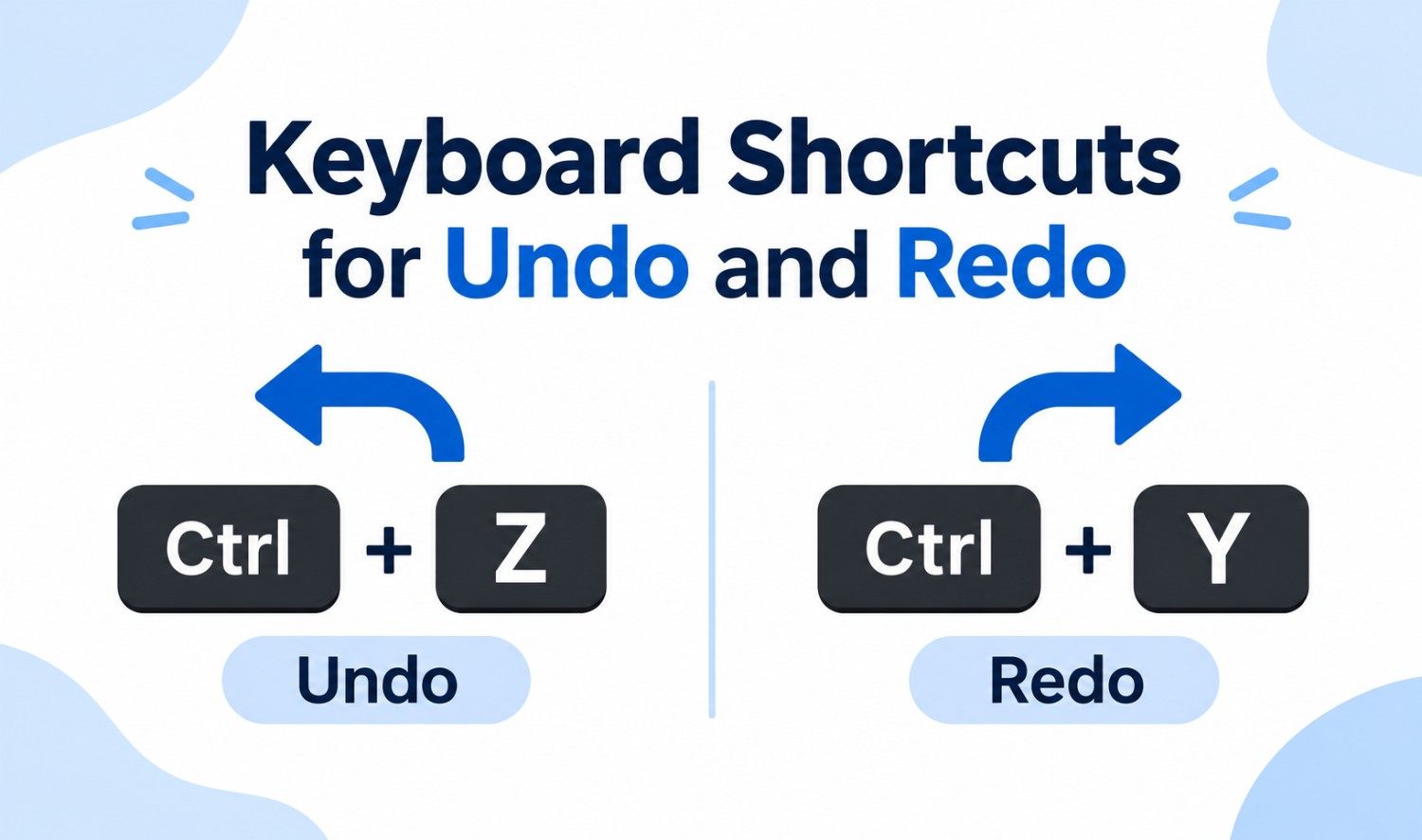

The standard keyboard shortcuts for undo and redo are Ctrl+Z to undo and Ctrl+Y to redo on Windows. On a Mac, use Command+Z to undo and Shift+Command+Z to redo. On a Chromebook, redo is Ctrl+Shift+Z. A few apps, like Microsoft Office for Mac and Photoshop, use their own redo hotkey.
We’ve all been there. You delete a paragraph by accident, hit undo, then realize you actually wanted that change. That’s what redo is for. This guide gives you every undo redo shortcut by device and app, explains why Ctrl+Y sometimes does something else and shows you how to fix redo when it stops working. Every shortcut below comes from the official Microsoft, Apple, Google, Adobe and other vendor documentation.
Key Takeaways
- Windows: Ctrl+Z to undo, Ctrl+Y to redo.
- Mac: Command+Z to undo, Shift+Command+Z to redo.
- Chromebook and Google Docs: Ctrl+Shift+Z to redo.
- Exceptions: Office for Mac uses Command+Y, Photoshop uses Shift+Ctrl+Z and JetBrains IDEs use Ctrl+Y to delete a line.
- Redo only works after undo: If you haven’t undone anything, there’s nothing to redo.
Undo and Redo Shortcuts: Quick Reference Table
Here are the undo and redo shortcuts for every major platform in one table. Windows uses Ctrl+Y for redo, while Mac, Chromebook and many web apps use a Shift+Z combination. If you only remember one rule, remember this: undo is always Z, and redo adds either Y or Shift.
| Platform or App | Undo | Redo |
|---|---|---|
| Windows | Ctrl+Z | Ctrl+Y |
| Mac | Command+Z | Shift+Command+Z |
| Chromebook | Ctrl+Z | Ctrl+Shift+Z |
| Microsoft Word, Excel (Windows) | Ctrl+Z | Ctrl+Y |
| Microsoft Office for Mac | Command+Z | Command+Y |
| Google Docs (PC and Chromebook) | Ctrl+Z | Ctrl+Shift+Z |
| Google Docs (Mac) | Command+Z | Shift+Command+Z |
| Adobe Photoshop (Windows) | Ctrl+Z | Shift+Ctrl+Z |
| Adobe Photoshop (Mac) | Command+Z | Shift+Command+Z |
| VS Code (Windows, Linux) | Ctrl+Z | Ctrl+Y |
| VS Code (Mac) | Command+Z | Shift+Command+Z |
| JetBrains IDEs (Windows) | Ctrl+Z | Ctrl+Shift+Z |
| Vim | u | Ctrl+R |
What Is the Redo Hotkey?
The redo hotkey reverses an undo. If Ctrl+Z is undo, the opposite of Ctrl+Z is Ctrl+Y on Windows. Microsoft describes Ctrl+Y as a way to “redo an action that was previously undone with Ctrl+Z.” On a Mac, the redo hotkey is Shift+Command+Z. Redo only works right after an undo.
Think of undo and redo as moving backward and forward through a list of your recent actions. Undo steps back one action. Redo steps forward again. If you make a brand new change after undoing, the redo history is usually cleared, so you can’t go forward anymore.
There are two common redo shortcuts:
- Ctrl+Y: The standard redo key on Windows and in Microsoft apps.
- Ctrl+Shift+Z (or Shift+Command+Z): The standard on Mac, Chromebook and many web and creative apps.
Some apps support both, and others support only one. That’s why the redo key you’re used to might not work everywhere.
International keyboards: On German keyboards, the Ctrl key is labeled Strg. So Strg+Z is undo and Strg+Y is redo. Microsoft’s German support pages list the same shortcuts with the Strg label.
Undo Shortcut Key on Windows, Mac and Chromebook
The undo shortcut key is Ctrl+Z on Windows and Chromebook, and Command+Z on a Mac. It works in nearly every app, from text editors to browsers to design tools. Press it once to undo your last action, or press it repeatedly to keep stepping back through your recent changes, as far as the app’s history allows.
- Windows undo hotkey: Ctrl+Z. Microsoft describes it as “Undo the previous action.”
- Mac undo hotkey: Command+Z. Apple’s description: “Undo the previous command.”
- Chromebook undo key: Ctrl+Z.
- Linux: Ctrl+Z in most desktop apps.
If you’re on a laptop and don’t want to use the keyboard, look for Undo in the app’s Edit menu, or the curved arrow pointing left in the toolbar.
Redo Shortcut by Operating System
The redo shortcut depends on your operating system. Windows uses Ctrl+Y, Mac uses Shift+Command+Z and Chromebook uses Ctrl+Shift+Z. Linux apps vary, but most accept Ctrl+Y or Ctrl+Shift+Z. If one doesn’t work, try the other, or check the app’s Edit menu, which always shows the correct redo keys.
Redo Shortcut on Windows
On Windows, press Ctrl+Y to redo. This Ctrl redo combination works across File Explorer, Notepad, Microsoft Office and most Windows apps. According to Microsoft’s Windows keyboard shortcuts page, Ctrl+Y redoes “typing that was undone with Ctrl+Z” in text and redoes actions on the desktop.
Redo Shortcut on Mac
On a Mac, press Shift+Command+Z to redo. Apple’s Mac keyboard shortcuts page says that after you undo with Command+Z, “you can then press Shift-Command-Z to Redo, reversing the undo command.”
A lot of Mac users search for the “command redo” key and expect Command+Y. That only works in Microsoft Office for Mac (more on that below). In most other Mac apps, including Apple’s own, the redo command on Mac is Shift+Command+Z, the system shortcut Apple lists.
Redo Shortcut on Chromebook
On a Chromebook, press Ctrl+Shift+Z to redo. Google’s Chromebook help lists it as “Redo your last action.” To see every Chromebook shortcut, press Ctrl+Search+S.
Redo Shortcut on Linux
On Linux, the redo key depends on the app. Many apps use Ctrl+Shift+Z, and others accept Ctrl+Y. When in doubt, open the Edit menu, where the redo shortcut is shown next to the command.
Redo and Undo Shortcuts in Popular Apps
Most apps follow the operating system’s undo and redo shortcuts, but some important ones don’t. Microsoft Office uses Ctrl+Y on Windows and Command+Y on Mac. Google Docs uses Ctrl+Shift+Z. Photoshop uses Shift+Ctrl+Z, and JetBrains IDEs use Ctrl+Y to delete a line instead of redoing.
Microsoft Word, Excel and PowerPoint
- Windows: Ctrl+Z to undo, Ctrl+Y to redo. In Word, Microsoft describes Ctrl+Y as “Redo the previous action, if possible.”
- Mac: Command+Z to undo, Command+Y to redo. Microsoft lists Command+Y as “Redo or repeat the last action” in Office for Mac.
So if you’re looking for the redo shortcut in Word or Excel on a Mac, it’s Command+Y, not Shift+Command+Z.
Google Docs and Sheets
In Google Docs, press Ctrl+Shift+Z on Windows or Chromebook, and Command+Shift+Z on a Mac. Undo is Ctrl+Z or Command+Z. You can also use the curved arrow buttons in the toolbar.
Adobe Photoshop
Photoshop uses Shift+Ctrl+Z (Windows) or Shift+Command+Z (Mac) to redo, and Ctrl+Z or Command+Z to undo. If you prefer the older Photoshop undo behavior, Adobe lets you turn on “Use Legacy Undo Shortcuts” under Edit > Keyboard Shortcuts and Menus, then restart the app.
VS Code and Other Code Editors
In VS Code, redo is Ctrl+Y on Windows and Linux, and Shift+Command+Z on a Mac, according to Microsoft’s default keybindings reference. JetBrains IDEs like IntelliJ IDEA are different. On Windows, redo is Ctrl+Shift+Z, and Ctrl+Y deletes the current line. That surprises plenty of developers switching from other editors.
If you’re choosing an editor, our guide to the best coding software compares VS Code, JetBrains IDEs and other options.
Vim
Vim uses its own keys. Press u to undo and Ctrl+R to redo. Vim’s help describes Ctrl+R as “Redo [count] changes which were undone,” so you can type a number first, like 3 then Ctrl+R, to redo three changes.
Redo vs Repeat: What’s the Difference?
Redo and repeat sound similar but do different things. Redo brings back an action you just undid. Repeat performs your last action again, even if you didn’t undo anything. In Microsoft Word and Excel on Windows, Ctrl+Y and F4 can repeat your last command when there’s nothing left to redo.
For example, if you make a word bold, then select another word and press F4, Word makes that word bold too. Microsoft describes F4 as a key that “repeats the last command or action, if possible.” In Excel, Ctrl+Y is listed as “Repeat the last command or action, if possible.”
There’s one catch in Excel. When you’re editing a formula and select a cell reference, F4 switches between absolute and relative references (like A1 and $A$1) instead of repeating.
What the Redo Button Looks Like
The redo button is usually a curved arrow pointing to the right, and the undo button is a curved arrow pointing to the left. You’ll find them in the toolbar of apps like Microsoft Word, Google Docs and many design tools, often near the top left corner of the window.
If you can’t find the buttons, check these places:
- Edit menu: Most desktop apps list Undo and Redo at the top of the Edit menu, along with their shortcuts.
- Quick Access Toolbar: In Microsoft Office on Windows, the undo and redo arrows often appear here or on the Home tab.
- Right-click menu: Some apps include Undo in the right-click menu for text.
How to Undo and Redo on iPhone and Android
On an iPhone, you can undo typing by swiping left with three fingers, according to Apple’s iPhone User Guide. You can also shake your iPhone to undo, a feature called Shake to Undo. On Android, undo and redo depend on the app, so look for the curved arrow buttons in the app’s toolbar or menu.
- iPhone three-finger swipe: Apple says, “To undo text edits, swipe left with three fingers.”
- Shake to Undo: Shake the iPhone to bring up an undo prompt. If you trigger it by accident, Apple notes you can turn it off in Settings > Accessibility > Touch.
- Android: There’s no single system-wide undo gesture. Apps like Google Docs show undo and redo arrows in the toolbar.
- External keyboard: If you connect a keyboard to a tablet or phone, the standard Ctrl+Z or Command+Z shortcuts often work in supported apps.
Redo Shortcut Not Working? Quick Fixes
If the redo shortcut isn’t working, the most common reason is that there’s nothing to redo, because you made a new change after undoing. Other causes include using the wrong shortcut for your app, the wrong part of the window being active or another program taking over the key combination. These quick fixes solve most cases.
- Undo first: Redo only works after undo. A new edit clears the redo history.
- Try the other shortcut: Switch between Ctrl+Y and Ctrl+Shift+Z (or Command+Y and Shift+Command+Z on a Mac).
- Click inside the document: If focus is on a toolbar or another panel, the shortcut may not reach the document.
- Check the Edit menu: It shows whether Redo is available and which keys the app uses.
- Look for conflicts: Some apps reassign keys. In JetBrains IDEs, for example, Ctrl+Y deletes a line.
- Check your keyboard layout: On some international layouts, Y and Z are in different positions, so the key you press may not be the one the app expects.
If your team spends hours on repetitive edits, undo and redo are only the start. Our workflow automation team can help you automate the repetitive tasks themselves.
Frequently Asked Questions
What is the opposite of Ctrl+Z?
The opposite of Ctrl+Z is Ctrl+Y on Windows, which redoes the action you just undid. On a Mac, the opposite of Command+Z is Shift+Command+Z. On a Chromebook and in Google Docs, it’s Ctrl+Shift+Z.
If Ctrl+Z is undo, what is redo?
If Ctrl+Z is undo, redo is Ctrl+Y on Windows. Many apps, including Google Docs and Photoshop, also use Ctrl+Shift+Z for redo. On a Mac, redo is Shift+Command+Z.
What is the redo shortcut on Mac?
The redo shortcut on Mac is Shift+Command+Z in most apps. The main exception is Microsoft Office for Mac, where redo is Command+Y.
Is redo Ctrl+Y or Ctrl+Shift+Z?
Both are used. Ctrl+Y is the Windows and Microsoft Office standard. Ctrl+Shift+Z is the standard on Chromebook and in apps like Google Docs and Photoshop. Check the app’s Edit menu to see which one it uses.
Why is Ctrl+Y not working?
Ctrl+Y may not work because there’s nothing to redo, because the app uses Ctrl+Shift+Z instead or because Ctrl+Y is assigned to something else. In JetBrains IDEs, for example, Ctrl+Y deletes the current line.
How do I undo an undo?
To undo an undo, use redo. Press Ctrl+Y on Windows, Shift+Command+Z on a Mac or Ctrl+Shift+Z on a Chromebook. This restores the change you just reversed.
What is the redo shortcut in Excel?
In Excel for Windows, the redo shortcut is Ctrl+Y. Microsoft also describes it as repeating the last command or action, if possible. In Excel for Mac, use Command+Y.